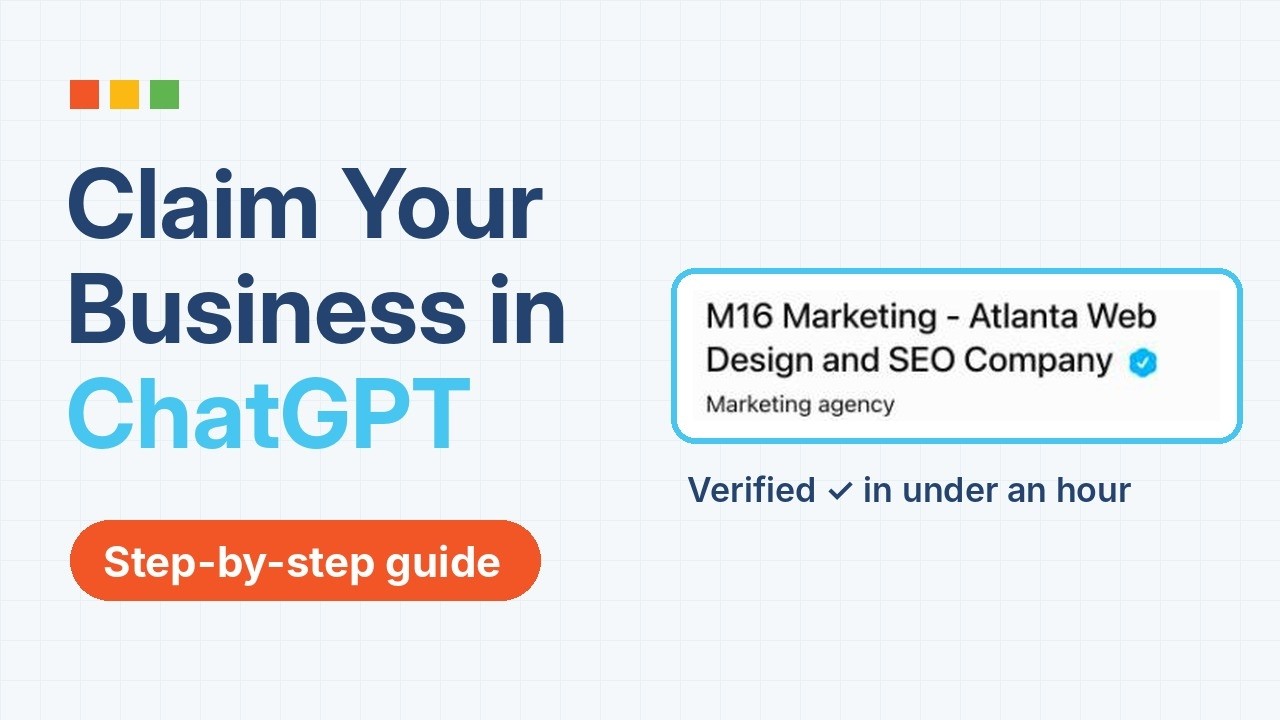
You can now claim your business inside ChatGPT, for free, at chatgpt.com/business-hub. OpenAI launched Businesses in ChatGPT in beta on November 10, 2026. It works like a Google Business Profile for ChatGPT: you verify you own the business, then you control the details ChatGPT shows people about you.
We claimed and verified M16 Marketing’s profile the day after launch and filled in every section. This guide walks through exactly what we did, what each screen asks for, and the snags we hit, so you can get yours done in about an hour.
Prefer to watch? Here’s the full walkthrough in under five minutes:
Why it’s worth doing now
- People are already asking ChatGPT about you. OpenAI says about 1.2 billion people use ChatGPT every week (). In our first 7 days of data, ChatGPT mentioned M16 34 times and sent 2 clicks to our website.
- Your profile exists whether you claim it or not. Claiming doesn’t decide whether a listing appears; unclaimed listings stay visible. Claiming is how you make sure what it says is right.
- Early claimants get the clean listing. We found four separate M16 listings in ChatGPT, with addresses that didn’t all match. Sorting that out is easier now than after customers find the wrong one.
What you need before you start
Gather these first and the whole claim takes about an hour. The owner or an authorized representative has to be the one at the keyboard for step 2.
- A ChatGPT account (a free one works) logged in by the business owner or an authorized representative
- Access to one of these, so OpenAI can confirm you control the business: the business phone, a business email, your domain’s DNS settings, or your Shopify store
- A government-issued photo ID for the identity check
- A 300-character description of what you do (write it ahead of time; the box cuts you off at 300)
- Your exact address, phone, public email, website and hours, matching your Google Business Profile
- 3 to 5 good photos: storefront or office, team, your work, your logo
- Optional: a list of your products or services with prices, if you want them to show in ChatGPT
Step 1: Find and claim your listing
- Log in to ChatGPT and open Business Hub from the sidebar, or go straight to chatgpt.com/business-hub.
- Search for your business name and pick the listing with your current address. Look closely: we found four M16 listings, and only one showed our current headquarters address. Claim the right one first; you can deal with the others later.
- Select Claim and confirm you are the owner or an authorized representative.
Step 2: Verify you own the business
OpenAI confirms your claim through your business phone, email, website domain or Shopify account, depending on the business. We used the website domain, which is the most reliable if you control your DNS.
Domain verification (DNS TXT record)
- Choose the domain option. ChatGPT shows a TXT value that starts with
openai-business-claim=. - Copy it exactly.
- Log in to wherever your domain’s DNS lives (ours is GoDaddy) and add a new record:
- Type: TXT
- Name/Host: @
- Value: the full
openai-business-claim=…string - TTL: leave the default
- Save, go back to ChatGPT and select Verify.
Ours verified within minutes. DNS changes can take up to 24 hours to spread, so if it fails, wait an hour and try again rather than starting over (OpenAI Help).
Identity check
Next comes a short ID check run by Persona, OpenAI’s identity partner: you photograph your government ID and follow the on-screen prompts. You need it to publish changes, connect a product feed or see your insights. The owner has to do this part personally; an agency or assistant can’t do it for you.
When both checks pass, a blue verified checkmark appears next to your business name.
Step 3: Complete every section of your profile
Once verified, select Edit business info. There are five tabs. A preview on the right shows exactly what ChatGPT users will see as you type.
| Tab | What to enter | What we learned |
|---|---|---|
| About | Business category and “More about your business” | You get one category, so pick the one buyers search for. The description stops at 300 characters; put your city, your main services and who you serve first. |
| Contact | Phone, business email, website | Adding an email sends a 6-digit code to that inbox. Use a shared address like support@ that someone checks. |
| Photos | Several images | Each upload goes through a review before it shows. Lead with a real photo of your office, team or work; add your logo last. |
| Location | Street address, suite | Match your Google Business Profile exactly, suite number included. |
| Hours | Open and close times per day, time zone | Set Monday, then use the copy button to apply it to the other weekdays. Don’t skip the time zone. |
Here is the description we used, at 290 characters:
Strategy-first Atlanta marketing and AI agency serving clients nationwide since 2013. SEO, AEO for ChatGPT and AI Overviews, AI chatbots, agents, workflow automations and AI-powered tools, SEO web design, Google Ads and social media, run on PIEARM. Free strategy session at m16marketing.com
Select Save on each tab before moving to the next. Unsaved edits are lost when you switch tabs, and ChatGPT warns you before discarding them.
Step 4: Add your products or services
A product feed lets ChatGPT show what you sell, with prices and availability. Service businesses can use it too: we listed nine services, from a free strategy session to website projects.
- Open Products in Business Hub and select Add products.
- Name the feed (for example, “Company Services”).
- Accept OpenAI’s Merchant Feed Terms. This is a legally binding acceptance on your business’s behalf, so read it or have the right person approve it.
- Choose the countries you sell in and your currency.
- Upload your file. Plain CSV works; ChatGPT also accepts TSV, tab-separated TXT and Parquet, up to 20 MB.
- Check the preview. ChatGPT validates a sample and flags errors before anything goes live.
- Select Confirm. Processing takes from a few minutes to a few hours.
Every row needs nine fields (OpenAI Product Feed Spec):
| Field | Example |
|---|---|
item_id |
m16-seo |
title |
SEO Services – Starting at $2,400/month |
description |
Plain text about the product or service |
url |
The page on your site for that offer |
brand |
M16 Marketing |
seller_name |
M16 Marketing |
image_url |
A direct link to a JPG or PNG |
price |
2400.00 USD |
availability |
in_stock |
Two tips from doing it:
- The price field takes one number. If you sell monthly plans or a price range, say so in the title and the first line of the description, like “Starting at $2,400/month” or “$16,200 to $250,000+”.
- Use the same item IDs every time you update. Choose Update products on your existing feed rather than adding a new one, so you replace your listings instead of duplicating them.
7 things we learned claiming M16’s profile
- Check for duplicate listings before you claim. ChatGPT showed four M16 listings in different cities, with addresses that didn’t all match our current office. Claim the right one, then decide what to do with the rest.
- If the claim flow sends you back to the start, run it again. Our first attempt reset after verification; the second went straight through.
- Write your description offline first. 300 characters goes fast. We rewrote ours twice to fit services, location and a call to action.
- Pick your category for buyers, not for you. You only get one. We build AI chatbots, agents and automations too, but kept “Marketing agency” because that is what our buyers search for, and named the AI work in the description and products instead.
- Expect photo review. Uploads sat in “Reviewing your change” for a while. That is normal; don’t upload them again.
- Business Agents aren’t open to everyone yet. Our Agent builder says it “isn’t available yet” for our type of business. At launch, agents are limited to eligible online shops and online service businesses in the US ().
- Keep everything consistent. Use the same name, address, phone, hours, services and prices as your website and Google Business Profile. Matching details across sources make every AI answer about you more accurate.
What you get once you’re verified
Business Hub shows how often ChatGPT mentions your business, how many people click through to your website, and the common topics in those conversations, over the past 28 days. You don’t see individual chats. A blank number can simply mean there isn’t enough data yet, not zero.
Frequently asked questions
Is claiming a business in ChatGPT free?
Yes. Claiming and managing your profile is free at launch (LovedBy).
Who can claim a business profile?
The owner or an authorized representative of an eligible business located where ChatGPT is available. Physical stores and restaurants can only claim an existing US listing at launch.
How long does verification take?
Ours took under an hour, including the ID check. If you verify by DNS, the TXT record can take up to 24 hours to be seen.
Will claiming my profile make ChatGPT recommend me more?
OpenAI doesn’t say it changes how often you’re mentioned. What it does is make sure the details shown are yours, and it gives you data on mentions and clicks. Getting mentioned more often is the job of answer engine optimization (AEO).
Can I remove a listing I don’t want?
Not on request. OpenAI support won’t delete or hide a published profile because the owner asks. Claim it and correct it instead.
Does ChatGPT only use my profile?
No. ChatGPT can still draw on other sources, such as your website, reviews and directories, when it answers questions about you. Keep those consistent with your profile.
Can I see what people asked ChatGPT about my business?
No. You see mentions, website clicks and common topics, but not individual conversations.
See a finished profile, then claim yours
Want to see what a complete, verified profile looks like? Open ChatGPT and ask “Tell me about M16 Marketing in Atlanta.” Select our name in the answer to open the profile, with the blue checkmark, photos, hours and services.
Claiming your profile is the first step. Getting ChatGPT, Google AI Overviews and Perplexity to mention you more often takes answer engine optimization. If you want help with either, request a strategy call and we’ll review how AI tools describe your business today.
Continue Learning
- How to Optimize My Google Business Profile: Step by Step Instructions
- What Is Answer Engine Optimization (AEO)?
- Structured Data for AI Search: A Practical Schema Guide
- Google AI Overviews: How Businesses Can Earn Citations
- How AI Search Works: Understanding the New Search Experience
Sources: – Business Hub, ChatGPT – – LovedBy: How to Claim Your Business in ChatGPT – OpenAI Help: Verifying your domain – OpenAI Developers: Product Feed Spec