
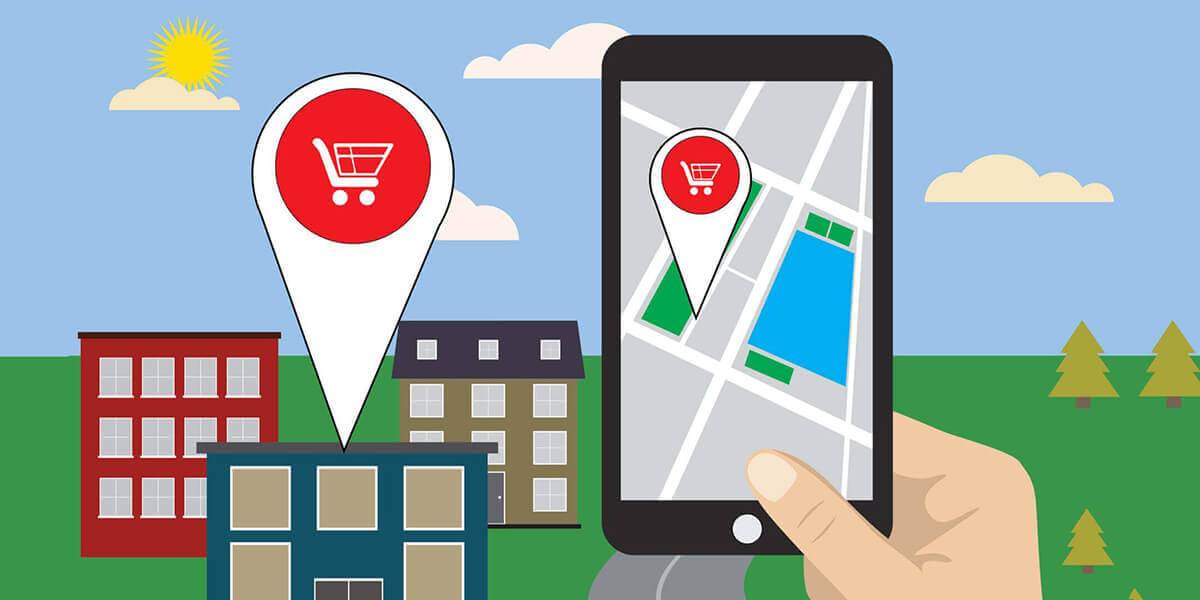
As a local business owner, you can’t ignore the value of a Google Maps listing. Since its launch in the mid-2000s, Google Maps has grown into an indispensable tool for navigation and business discovery. Today, it boasts over 1 billion monthly users and lists more than 150 million local businesses worldwide.
What makes Google Maps especially critical for local businesses:
-
High local intent: Roughly 40% of Google searches include geographic qualifiers—indicating users are specifically seeking local services or shops
-
Strong mobile behavior: 76% of mobile users consult Google Maps before making in-store visits
Why Your Business Needs a Strategic Google Maps Presence
-
Increased discoverability: With such high usage and local intent, being visible on Maps means showing up where it matters most.
-
Credibility & trust signals: Verified profiles with photos, current hours, and customer reviews not only improve rankings but also instill confidence.
-
Conversion driver: Users often decide in a split second—having accurate details and positive reviews on Google Maps can be the difference between visiting you or a competitor.
-
Valuable analytics: Google Business Profile insights provide visibility metrics like searches, calls, clicks, and direction requests.
How a Google Maps Listing Can Benefit Your Local Business
Even if your local business is doing just fine without Google Maps, getting it listed offers several benefits. Adding your local business to Google Maps helps customers find your business using the app’s turn-by-turn navigation. Google Maps doesn’t just display your local business’s address; it reveals the exact directions a customer needs to reach your local business from his or her current location.
With a Google Maps Atlanta listing, customers can leave a review of your local business. Leaving reviews on Google Maps is a quick and painless process. After pulling up your local business on the navigation app, customers can click the “Write a review” button to leave a review. Each positive review serves as a badge of confidence for prospective customers who are thinking about visiting your local business and purchasing its products or services.
Your local business will also benefit from increased credibility if it appears on Google Maps. If customers only see your competitors listed on Google Maps, they may view your local business with less credibility. After all, Google Maps is used by over 1 billion people each month, so every credible business should have a listing on it.
Check to See If Your Local Business Is Already Listed
Before adding your local business to Google Maps, you should check to see if it’s already listed on the navigation app. Google Maps doesn’t support duplicate listings. If someone else has already added your local business, you won’t be able to add it again.
Using either the Google Maps app on your mobile device or the desktop app at google.com/maps, enter your local business’s name in the search box. As you type in the search box, Google Maps will reveal any listings for that name. Assuming your local business isn’t listed on Google Maps, you’ll see a “No results found” or “Maps can’t find [BUSINESS]” message, depending on whether you’re using a mobile device or desktop computer.
2 Ways to Get Your Local Business Listed on Google Maps
There are two different ways to get your local business listed on Google Maps. You can either click the “Add a place” button and complete the form about your local business, or you can create a Google My Business listing. The former method is the easiest, but the latter method offers greater customization and control over your local business’s listing.
If you take the easy route by adding your local business through Google Maps, you won’t be able to claim your listing. In other words, other Google users can modify your listing without your consent.

What Is a Google Business Profile
Google Business Profile is a free tool offered by Google that allows businesses to manage how they appear across Google Search and Google Maps. By creating and verifying your profile, your business can show up in local search results, including the Google Map Pack—a prominent section that displays top local listings relevant to a user’s search.
While you can add your business directly through the Google Maps app, setting up a Google Business Profile offers significantly more control. It allows you to update business hours, upload photos, respond to customer reviews, publish posts, and even provide service or product details—all of which help improve visibility and build trust with local customers.
Claiming and optimizing your Google Business Profile ensures that your business is accurately represented in Google’s local ecosystem. It’s an essential step for increasing visibility, driving foot traffic, and attracting high-intent local leads.
How to Create a Google Business Profile
To create a Google Business Profile listing and get your local business on Google Maps, visit google.com/business and click the “Manage Now” button. In the “Business name” field, enter your local business’s name in its exact spelling and format. On the following page, you’ll be asked whether you want to add a location that customers can visit. For your local business to appear on Google Maps, you must select “Yes” for this option.
Next, enter your local business’s address. Google Maps will then ask if you sell to customers outside of this address. If you only serve local customers, choose “No, I don’t” and proceed to the next step.
You’re almost finished setting up your Google My Business listing. For the next section, you must choose a primary category that best describes your local business. Google My Business has hundreds of categories, many of which are very specific. You can always change your primary category or add secondary categories later, but try to choose the most relevant primary category when setting up your Google My Business listing. By choosing a highly relevant category, your local business is more likely to appear in Google Search’s local pack for relevant keywords.
Finally, you must enter your local business’s contact information, including its phone number and, if applicable, website address. Upon clicking the “Finish” button, your Google My Business listing will be live.
Don’t Forget to Verify Your Google My Business Listing
Of course, you should verify your newly created Google My Business to prevent other users from changing your local business’s information. Google supports several methods of verification, some of which include phone, email, and postcard. Of those supported methods, postcard is the most popular.
To verify your Google My Business listing, log in to your account and click the “Verify now” button. You can then choose your preferred method of verification.
Failure to get your local business listed on Google Maps will almost certainly cost you, customers. When users see your competitors listed on the navigation app, they’ll probably visit one of their establishments rather than your local establishment. The good news is you can add your local business to Google Maps by creating a Google My Business listing.


